#tabs

Vivaldi Tipstips@vivaldi.com
2026-02-13

Tip #787

タブのピン留めを現在のサイトに制限する方法

タブのピン留めは、よく利用するタブを常に同じ場所に表示できる機能ですが、ブラウジング中に元々ピン留めしたタブからそれてしまう可能性があります。ブラウジングをピン留めしたサイトのドメインに制限すると、ピン留めしたタブをそのサイトに固定することができます。

ピン留めしたタブ を同じドメインに固定するには:

  1. ピン留めしたタブで右クリックする
  2. 「ピン留めしたタブを現在のサイトに制限する」を選択する

有効にすると、同じドメインのリンクはすべてピン留めしたタブ内で開き、その他のドメインのリンクは新たに標準のタブで開きます。

https://vimeo.com/1159205943/ef058edfbf

#Tabs #vivaldi #VivaldiBrowser

https://vivaldi.com/ja/blog/tips/desktop-tips/tip-787/

2026-02-12

Tip #792

Open the Tab Switcher in Vivaldi on iOS with a swipe on the Address Bar.

Whenever you want to get a good overview of all your standard, private, synced, etc. tabs, the Tab Switcher is the place to go.

To enable Address Bar swipe gesture:

  1. Go to Settings > Address Bar > Address Field Options.
  2. Toggle on “Enable Address Bar Swipe Gesture”.

Once the setting is enabled, all you need to do is swipe from the Address Bar towards the page to open the Tab Switcher. In other words, swipe down when the Address Bar is at the top and swipe up when the Address Bar is at the bottom of the screen.

#addressBar #iOS #Tabs #Vivaldi #VivaldiBrowser

https://vivaldi.com/blog/tips/tip-792/

Two iPhones with Vivaldi open in them. One shows a web page with a drag motion from the Address Bar, the other shows the Tab Switcher.
2026-02-11

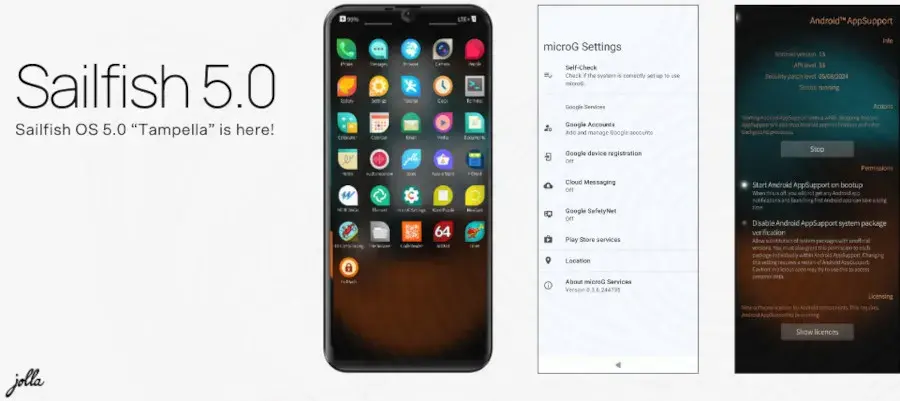
#SailfishOS 🇫🇮
docs.sailfishos.org/Support/Su

Brand Model

📱#Phones
Jolla 🇫🇮 | C2, C, Phone
Planet 🇬🇧 | Gemini PDA
Sony 🇯🇵 | Xperia 10 (I-V), X, XA2

📟️ #Tabs
Jolla 🇫🇮 | Tablet

@sailfishosnews
#DeGoogle #DeGoogled #Linux #SailfishOS #SailfishOSDevices #sailfishosnews

#sailfishosnews
#DeGoogle #DeGoogled #Linux #SailfishOS #SailfishOSDevices
2026-02-11

#Mobian 🇪🇺
wiki.debian.org/Mobian/Devices

Brand Model

📱#Phones
Fairphone | 4, 5
Google | Pixel 3a
OnePlus | 6, 6T
Pine64 | PinePhone & Pro
Pocophone | F1
Purism | Librem 5
Shift | 6mq

📟️ #Tabs
Pine64 | PineTab, PineTab2, PineTab-V

💻️ #PC
Generic | x86

@mobian
#DeGoogle #DeGoogled #Linux #mobianmobile #mobian

@mobian
#DeGoogle #DeGoogled #Linux #mobian
2026-02-11

#Droidian 🐧
devices.droidian.org/#/devices

Brand Model

📱#Phones
Asus | Zenfone Max Pro M2
F(x)tec | Pro¹, Pro¹ X
Google | Pixel 3a
Lenovo | ThinkPhone
Motorola | G Power
OnePlus | 3, 3T, 6, 6T
Samsungb | S9, S9+, Note 9
Sony | Xperia 1, 5, 5 II
Volla | Phone, Phone X, 22, X23, Quintus
Xiaomi | Poco (F1, M2 Pro, X3), Mi (6X, 9T, Mix 3), Redmi (7, 9C, Note 7/9 Pro)

📟️ #Tabs
Volla | Tablet

droidian.org @droidian
#DeGoogle #DeGoogled #Linux #droidian

@droidian linux  mobile OS
2026-02-11

#iodeOS 🇫🇷 (lineageos fork)
iode.tech/installation/

Brand Model

📱#Phones
Fairphone | FP3, 4, 5, 6
Google | Pixel (3, 3a, 4, 4a, 5, 6, 6a, 6 Pro, 7, 7a, 7 Pro, 8, 8a, 8 Pro, 9, 9 Pro, 9 Pro XL)
Motorola | Edge (30, 40 Pro), G (32, 42, 52)
OnePlus | 9, 9 Pro, 11
Samsung | A (5, 7, 52s), Note (9, 10), S (9, 10)
Shift | 6mq, 8
Sony | Xperia XA2, XZ (1-3), 1/5 V
Teracube | 2e
Xiaomi | Mi (9, 10 Lite, 10T)

📟️ #Tabs
Samsung | Tab S5e, Tab S7

gitlab.iode.tech/ota/ota
@iode
#Degoogle #Android #DeGoogledAndroid

iodeOS degoogled phones        
lineage os fork
2026-02-11

#Ubuntu Touch 🇬🇧
devices.ubuntu-touch.io/
Brand Model

📱#Phones
Asus | Max Pro M1
Fairphone | 3, 4, 5
F(x)tec | Pro¹ X
Google | Pixel 3a
OnePlus | 5, 5T, 6, 6T, Nord N10, N100
Rabbit | r1
Volla | 22, Quintus, X, X23
Xiaomi | Mi 6, Poco (M2 Pro, X3)
Redmi | (7, 9, 9S, Note 9 Pro Max)

📟️ #Tabs
Lenovo | Tab M10 HD
Volla | Tablet

#DeGoogle #Linux @ubports

Ubuntu Touch by @ubports
2026-02-11

/e/OS 🇫🇷
doc.e.foundation/devices
Brand Model

📱#Phones
10.or | G
Asus | Zenfone 5Z, 8, Max M1
BQ | Aquaris X, X Pro
Essential | PH-1
F(x)tec | Pro¹, Pro¹ X
Fairphone | FP3, 4, 5, 6
Gigaset | GS290
Google | Pixel (3, 3a, 4, 4a, 5, 6, 7, 8, 9), Fold
Lenovo | Z5, Z6
LG | G5, G6, G7, V20, V30, V35, V40, Velvet
Moto | Edge (20/30/40), G , One, X4, Z2/3, (5/7/9/10/30/32/42/52)
ThinkPhone
Murena | 1, 2
Nothing | 1, 2, CMF
Nubia | Red Magic, Z 17 & 18
OnePlus | 5, 6, 7, 8, 9, Nord, Pad 2 Pro
Razer | Phone 1 & 2
Realme | 9, 10 Pro
Samsung | S:7/8/9/10/20, Note:9&10, A (21s/52/71/73), F62, M52
Shift | 6mq, 8
Solana | Saga
Sony | Xperia1, 5, 10, XA2, XZ2
Teracube | 2e, 2s
Vsmart | Joy 3
Xiaomi | Mi 5&13, Mix,Note,Poco,Redmi
ZTE | Axon 9
ZUK | Z2 Plus

📟️ #Tabs
Google | Pixel Tablet
OnePlus | Pad 2 Pro
Sam | Tab (A, S5e, S6, S7)
Volla | Tablet
Xiaomi | Pad 5

#e/os #DeGoogle @e_mydata

e/os degoogled phones
2026-02-11

#postmarketos 🇳🇱
postmarketos.org/install/

Brand Model

📱#Phones
Fairphone | 4, 5
Generic | MSM8953, SM7150
Google | Pixel 3a
Lenovo | A6k
Motorola | G4
Nokia | N900
OnePlus | 6, 6T
Pine64 | PinePhone & Pro
Purism | Librem 5
Samsung | A3, A5, Core, E7, Grand, S3, S4, S9
Shift | 6mq
Wileyfox | Swift
Xiaomi | MiNote2, Poco, Redmi2

📟 #Tabs
Asus | MeMO
Google | Nexus 10
Microsoft | Surface RT
Sam | Tab 2, Tab A
Xiaomi | MiPad 5

💻 #PC
Acer | CB 13
Amlogic | Generic
Arrow | DragonBoard
Generic | x86 EFI
Google | CBs (Asurada, x64)
HP | CB 14
Lenovo | X13s
Libre | AML-S805, S905
Nvidia | Tegra
ODROID | XU4
Pine64 | PineBook, RockPro
Sam | CB, CB2

#DeGoogle #Linux @postmarketOS

PostmarketOS linux OS for SmartPhones
#DeGoogle
Jean Luc am Grimmstendatenhalde@nrw.social
2026-02-11

Umfrage

In Deinem Hauptbrowser auf dem Desktop-Rechner:
Wo befinden sich bei Dir die Tabs?

#Tabs #Browser #GUI

Vivaldi Tipstips@vivaldi.com
2026-02-09

Tip #786

タブを閉じるボタンをカスタマイズしてみよう

Vivaldi は細かいところまでカスタマイズできることで知られています。その一つが、タブバーに表示される「タブを閉じる」ボタンです。

閉じるボタンを右あるいは左に表示するには:

  1. 設定 > タブ > タブ表示 > タブ設定 に移動する
  2. 「閉じるボタンを表示する」で、必要に応じて「タブの左側に表示」を有効・無効に切り替える

#Tabs #vivaldi #VivaldiBrowser

https://vivaldi.com/ja/blog/tips/desktop-tips/tip-786/

Two Vivaldi browser windows. In the one in the background the close button i on the leftVivaldi ブラウザのウィンドウが 2 つ表示されている。背面のウィンドウでは閉じるボタンが右側に表示されていて、前面では左側に表示されている。
Vivaldi Tipstips@vivaldi.com
2026-02-05

Tip #790

Keep the most important tabs in Vivaldi on Android within easy reach by pinning them.

Tabs can accumulate fast on mobile devices. To make sure you can always access your frequently used tabs quickly, pin them in place.

To pin a tab on the Tab Bar:

  1. Long-press on the tab on the Tab Bar.
  2. Select “Pin Tab”.

To pin a Tab in the Tab Switcher:

  1. Open the Tab Switcher.
  2. Long-press on the tab’s thumbnail.
  3. Select “Pin Tab”.

#android #Tabs #Vivaldi #VivaldiBrowser

https://vivaldi.com/blog/tips/tip-790/

Two phones with Vivaldi open, the one on the left having the menu for one of the tabs open, and the option "Pin Tab" highlighted. The one on the right shows that tab being pinned. The website that is open shows a picture of a brown couch nd different prints on the wall behind it.
Vivaldi Tipstips@vivaldi.com
2026-02-03

Tip #789

Tile a tab opened from a link with its parent tab in one move.

In a tiled view, you’ll have two or more tabs displayed simultaneously, allowing you to conveniently browse and compare content on multiple web pages at once. There are many ways to tile tabs, but if you’re about to open a link from a web page that you will be tiling with the active tab, follow the instructions below to cut this multi-step action down to just one step.

To create a tiled view from a link:

  1. Right-click on a link on the web page.
  2. Select Open Link In > Open Link as Tiled Tab.

When you do the same on an already tiled tab, the new tab will be added to the tiled view.

#tabStacks #Tabs #TabTiling #Vivaldi #VivaldiBrowser

https://vivaldi.com/blog/tips/desktop-tips/tip-789/

Link's right-click context menu on a website open in the Vivaldi browser. The option "Open as Tiled Tab" is highlighted.
Vivaldi Tipstips@vivaldi.com
2026-02-02

Tip #785

不要になったワークスペースを再利用・削除する方法

プロジェクトなどのために Vivaldi で作成した ワークスペース を新しいプロジェクトに再利用したり、単に削除したりすることができます。

ワークスペースを削除するには:

  1. ワークスペースメニューを開く
  2. アップデートしたいワークスペースを右クリックする
  3. コンテキストメニューから「ワークスペースを編集」を選択する
  4. 新しい名前を付けて、新しいアイコンを選択する
  5. 「完了」をクリックする
  6. ワークスペース内のすべてのタブを閉じる

ワークスペースを削除するには:

  1. ワークスペースメニューを開く
  2. アップデートしたいワークスペースを右クリックする
  3. 「ワークスペースを削除」を選択する

ワークスペースを削除すると中のタブもすべて閉じるため、一部のタブを保持したい場合には、まずタブを移動させるか、最近閉じたタブのメニューから再度開いてください。

#Tabs #vivaldi #VivaldiBrowser #workspaces

https://vivaldi.com/ja/blog/tips/desktop-tips/tip-785/

Vivaldi browser window with the Workspaces menu open. An arrow points at the edit and delete options.Vivaldi ブラウザのウィンドウでワークスペースのメニューが開いていて、矢印がワークスペースを編集したり、削除したりするオプションを指している
Vivaldi Tipstips@vivaldi.com
2026-01-29

Tip #787

Restrict pinned tabs to the current site.

Pinning tabs allows you to keep your most-used tabs open and available in the same location at all times. But that doesn’t prevent you from straying from the originally pinned site. To make sure your pinned tabs stays on the site, you can restrict browsing in that tab to the pinned domain.

To keep the Pinned Tabs locked to the same domain:

  1. Right-click on the pinned tab.
  2. Select Restrict Pinned Tab to Current Site.

When enabled, all links from the same domain will open in the pinned tab and all links from other domains will open in new regular tabs.

https://vimeo.com/1159205943/ef058edfbf

#Tabs #Vivaldi #VivaldiBrowser

https://vivaldi.com/blog/tips/tip-787/

Vivaldi Tipstips@vivaldi.com
2026-01-28

Tip #781

タブボタンのセクションを並べ替えて目的のタブを簡単に探し出す方法

タブボタン のポップアップでセクションを並べ替えると、開いているタブではなく、同期したタブや最近閉じたタブなど、目的に応じたものに素早くアクセスできるようになります。

セクションを並べ替えるには:

  1. ポップアップメニューを開く
  2. 移動させたいセクションをクリックしてドラッグする
  3. 新しい場所でマウスボタンをリリースしてドロップする

#Tabs #vivaldi #VivaldiBrowser #カスタマイゼーション

https://vivaldi.com/ja/blog/tips/desktop-tips/tip-781/

Vivaldi browser window with the Tab Button pop-up menu open. "Recently closed" tabs section is being dragged from the bottom of the list to a new location near the top.Vivaldi ブラウザのウィンドウでタブボタンのポップアップメニューが開いている。「最近閉じたタブ」のセクションがドラッグされてリストの下から上に移動させている。
Vivaldi Tipstips@vivaldi.com
2026-01-27

Tip #786

Place the Tabs close button where it’s convenient for you.

Vivaldi is famous for allowing you to configure the smallest of details. One such detail is the location of the tabs close button on the Tab Bar.

To choose the close button’s side:

  1. Go to Settings > Tabs > Tab Display > Tab Options.
  2. From “Display Close Button’s” subsettings, toggle “On Left Side” on or off, as needed.

#Tabs #Vivaldi #VivaldiBrowser

https://vivaldi.com/blog/tips/tip-786/

Two Vivaldi browser windows. In the one in the background the close button i on the right. In the one in the foreground the close button is on the left,
Vivaldi Tipstips@vivaldi.com
2026-01-22

Tip #785

Reuse or delete Workspaces that no longer serve a purpose.

When you’re done with a project that you created a Workspace for in Vivaldi it’s time to reuse it for a new project, or if there are currently no new projects, just delete it.

To reuse a Workspace:

  1. Open the Workspaces menu.
  2. Right-click on the one you want update.
  3. Select “Edit Workspace” from the context menu.
  4. Give it a new name and select a new icon.
  5. Click “Done”.
  6. Close all tabs in the Workspace.

To delete a Workspace:

  1. Open the Workspaces menu.
  2. Right-click on the Workspace you want update.
  3. Select “Delete Workspace”.

Deleting a Workspace will also close all tabs in it. If you want to keep some tabs around, move the tabs first or reopen them from the Closed Tabs menu.

#Tabs #Vivaldi #VivaldiBrowser #workspaces

https://vivaldi.com/blog/tips/tip-785/

Vivaldi browser window with the Workspaces menu open. An arrow points at the edit and delete options.

Client Info

Server: https://mastodon.social
Version: 2025.07
Repository: https://github.com/cyevgeniy/lmst